
ZENTRACE
One measurement. One saved point. A clearer way back.
Range a location with a compatible Zentron LRF device. ZenTrace combines distance, device direction and your phone’s GPS to save a field coordinate in ZSYNC—so you can return toward the marked area with less searching.
Q50R · C50R · M6-35R / M6 PRO · MEGA CQ25R
Features vary by model and firmware. See the setup guide for compatibility.
Integrated LRF · Four platforms
 Q50R
Q50R C50R
C50R M6-35R / M6 PRO
 MEGA CQ25R
Capture the distance
Measure the location with a compatible integrated LRF.
Create a field coordinate
ZSYNC combines range, direction and phone GPS.
Follow map guidance
Review bearing and distance as you move toward the saved point.
Turn a measurement into a point you can return to.
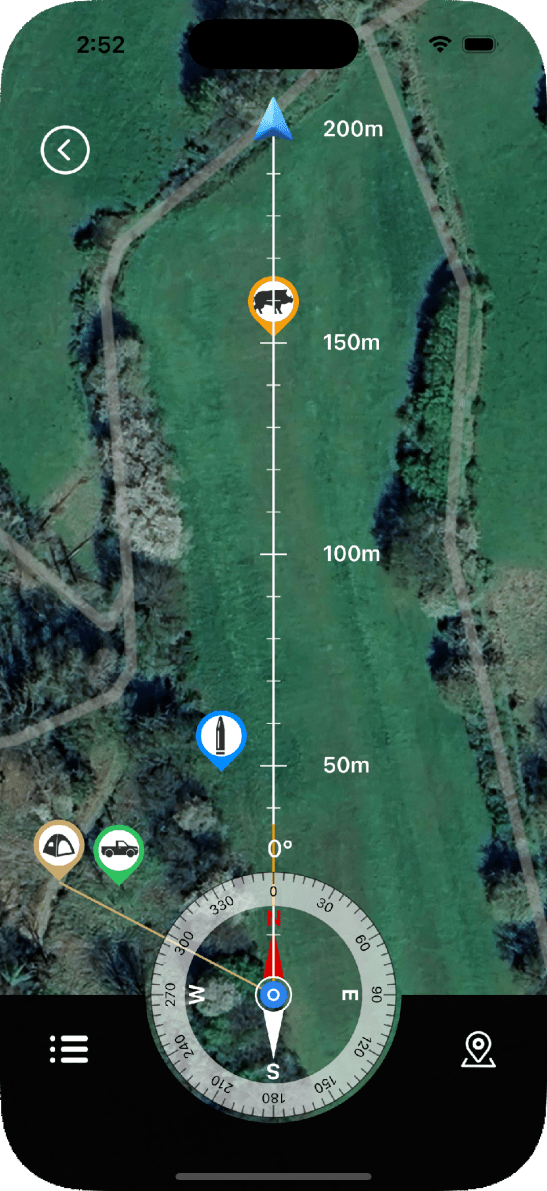
ZenTrace turns measured distance and device direction into a saved field reference in ZSYNC, then shows direction and distance as you move.
Range the location
Measure from a compatible Zentron LRF device while the location is still visible.
Save the field point
ZSYNC combines the measurement, device direction and phone GPS into a calculated marker.
Navigate back
Open the marker to see direction, distance and map guidance as you return toward the saved area.
From measurement to map guidance.
A compatible Zentron device captures the measurement. ZSYNC turns it into a saved point you can use in the field.
-
Measure
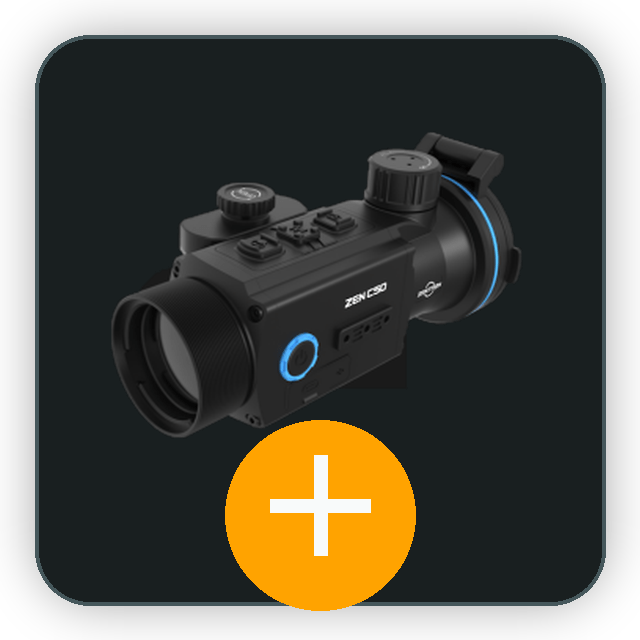
Use the device laser rangefinder to measure the target.
-
Connect
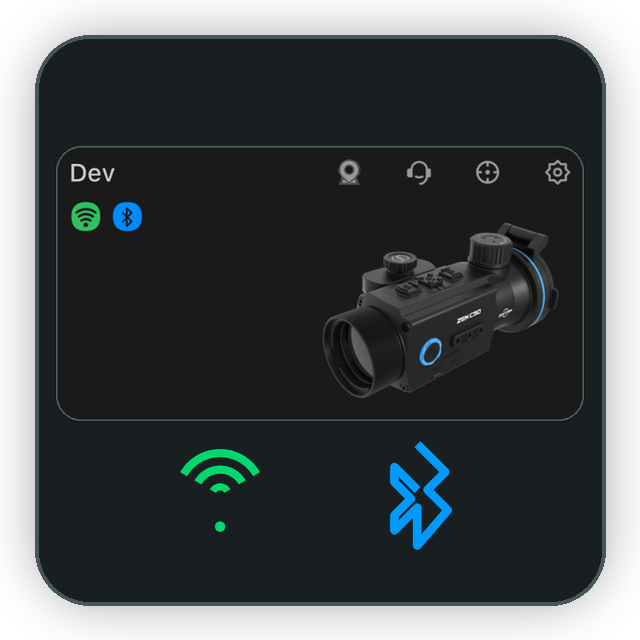
Pair the compatible device with ZSYNC over Wi-Fi and Bluetooth.
-
Sync
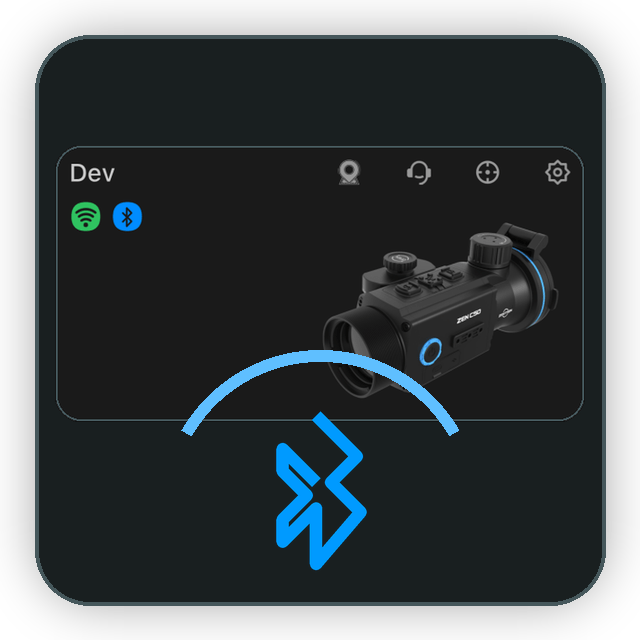
Transfer measured distance and device direction to the phone.
-
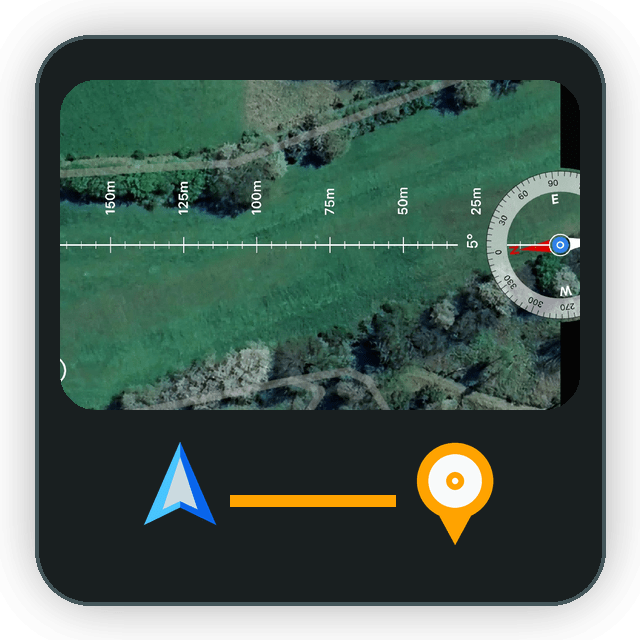
Calculate
ZenTrace combines the device data with phone GPS.
-
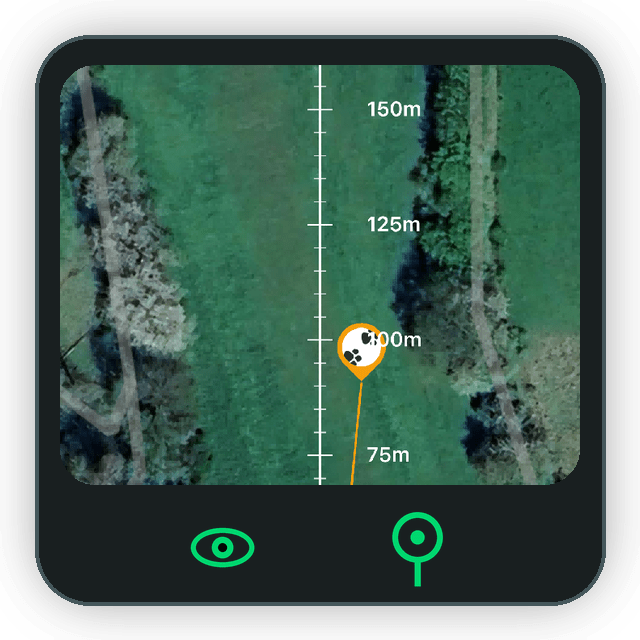
Navigate
Select the saved marker and follow the in-app map guidance.
Mark it your way.
Automatic Marker
On supported weapon-mounted devices, ZenTrace can generate a calculated marker after recoil.
Manual Marker
Place a marker directly on the map for handheld, observation or custom field workflows.
Map Navigation
Review the saved coordinate, distance and direction before moving toward the marked point.
See ZenTrace in the field.
Watch the compatible device connect to ZSYNC, transfer measurement data, create a marker and return to the saved location on the map.
ZenTrace field workflow shown in the ZSYNC mobile app.
DEVICE CLIPS
ZenTrace on two platforms.
M6 PRO
M6 PRO and ZSYNC, followed by thermal observation.
C50R
C50R and ZSYNC, followed by a view through the device.
Feature availability depends on device, firmware and app version.
Ready before you head out.
- Install the latest ZSYNC app from the App Store or Google Play.
- Connect the compatible device to the phone over Wi-Fi.
- Enable Bluetooth and switch the device to ZenTrace mode.
- Allow location, Bluetooth and required data permissions.
- Confirm the phone and device have enough battery for field use.
Take ZenTrace into the field.
Install ZSYNC, review the USA quick guide and contact the Zentron USA team if you need help with setup or compatibility.